
Have you ever sent a high-resolution TIFF file to a printer or uploaded it to an archive, only to realize later that the file contained your GPS coordinates, camera serial number, or internal project notes? It happens more often than you might think. TIFF files are powerhouses of data. They hold not just pixels, but layers of hidden information about where, when, and how the image was created.
In professional print production and institutional archiving, this extra data is usually noise. At worst, it is a liability. It can leak sensitive location data, violate privacy regulations like GDPR, or simply bloat file sizes without adding value to the final output. Stripping this metadata isn't just about tidying up; it is a critical step in securing your workflow and ensuring compliance.
Why TIFF Files Are Metadata Magnets
To understand why removing metadata is tricky, you first have to look at what a TIFF file actually is. Developed by Aldus Corporation in 1986 and now maintained as an open standard, the Tagged Image File Format is designed for flexibility. This flexibility is its greatest strength and its biggest privacy headache.
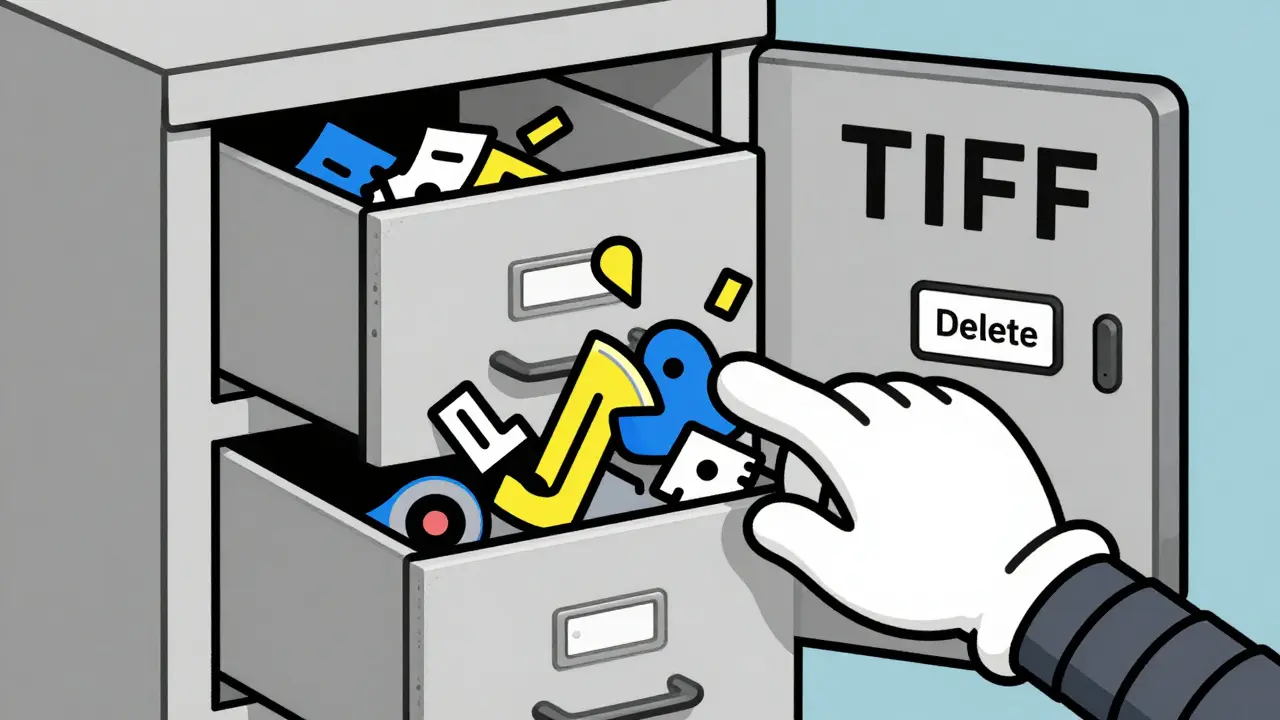
Unlike JPEGs, which store metadata in relatively simple segments, TIFFs use Image File Directories (IFDs). Think of IFDs as filing cabinets inside the file. You can have multiple IFDs, each holding different types of data:
- Baseline TIFF Tags: Basic info like resolution, color space, and compression type.
- EXIF Sub-IFD: Camera settings, ISO, shutter speed, and crucially, GPS coordinates if the device supports them.
- IPTC IIM Blocks: Editorial metadata such as photographer names, copyright holders, keywords, and descriptions.
- XMP Data: Extensible Metadata Platform tags used by Adobe products and other creative software to store custom workflow markers.
- GeoTIFF Spatial Data: Specialized geographic reference data used in mapping and surveying.
When you scan a document or capture a high-res image for print, all these layers get bundled together. If you are archiving historical records, you likely want to keep the image content pristine but remove any personal identifiers embedded in the IPTC blocks. If you are preparing a file for public distribution, you might need to strip everything except the basic resolution tags.
The Risks of Leaving Metadata Intact
Leaving metadata in place might seem harmless, but the risks stack up quickly in professional environments.
Privacy Leaks are the most obvious concern. A TIFF file containing a photo of a corporate event might embed the exact time it was taken and the GPS location of the venue. In the wrong hands, this data can be pieced together to track movements or identify individuals. Even seemingly innocuous fields like the camera’s serial number can sometimes be traced back to purchase records, linking a specific device to a specific user.
Regulatory Compliance is another major driver. Under regulations like GDPR, CCPA, and HIPAA, personally identifiable information (PII) must be handled with care. Metadata often contains PII-names, contact details, or health-related context in medical imaging. Failing to strip this data can lead to significant legal penalties and reputational damage.
Workflow Standardization matters too. In print production, unnecessary metadata increases file size. While TIFFs are already large, bloating them with redundant XMP packets or embedded thumbnails slows down transfer speeds and consumes storage unnecessarily. Clean files ensure smoother integration with downstream printing systems and archival databases.
Manual vs. Batch Processing: Choosing Your Approach
How you remove metadata depends entirely on the scale of your operation. Are you cleaning ten images for a brochure, or digitizing ten thousand documents for a library?
Manual Removal works fine for small batches. Using industry-standard tools like Adobe Photoshop, you can open a TIFF, go to File > File Info, and manually delete properties. This gives you full visibility into exactly what is being removed. However, doing this one by one is tedious and prone to human error. If you miss one field, or accidentally delete a tag you needed, the process has to start over.
Batch Processing is essential for large-scale archival work. When dealing with hundreds or thousands of multi-page TIFFs, manual intervention is impossible. You need automated solutions that can recursively process directories, apply consistent rules, and verify results without opening each file individually.
For quick, one-off tasks where you don’t want to install software, browser-based tools offer a middle ground. Tools like Vaulternal's image metadata remover allow you to drag and drop files, view the hidden data, and strip it instantly-all within your browser. Since the processing happens locally via WebAssembly, your sensitive files never leave your computer, making it a safe option for privacy-conscious users who need speed without the overhead of command-line tools.
Command-Line Power: ExifTool and Python Scripts
For technical professionals and system administrators, command-line utilities remain the gold standard for control and scalability. ExifTool is perhaps the most widely recognized open-source utility for this job. It runs on Windows, macOS, and Linux, and can handle virtually every metadata format known to imaging.
With ExifTool, you can write simple commands to strip all metadata from every TIFF in a folder tree. For example, running a recursive command allows you to process an entire archive directory at once. You can also output the extracted metadata to JSON format, which is incredibly useful for creating audit trails or integrating with database systems.
If your institution has software development capabilities, Python scripts offer even more granular control. Libraries like PIL (Python Imaging Library) or wrappers around ExifTool allow you to build custom logic. You could write a script that removes GPS data but preserves the capture date, or one that strips all IPTC tags while leaving baseline TIFF tags intact. This level of customization is invaluable for complex archival policies where "one size fits all" doesn’t apply.
Dedicated Software and Enterprise Solutions
Not everyone wants to code their own solutions. Dedicated desktop software bridges the gap between manual editing and raw command-line power. Programs like DotStella’s TIFF Metadata Eraser provide a graphical interface for batch operations. You select folders, preview images, and click a button to clear metadata. These tools often include selective removal features, letting you choose specific files or tags to target.
For massive institutional digitization projects, enterprise-class platforms like Image Access’ Opus Workflow integrate metadata management into broader orchestration systems. These solutions don’t just strip data; they manage the entire lifecycle of the document, from scanning to quality control to archival storage. While expensive and complex, they are necessary for organizations processing millions of pages.
Web-based services like GroupDocs.Metadata offer cloud-based convenience. You upload files, edit metadata in a browser interface, and download the cleaned versions. While easy to use, these services raise privacy questions. Uploading sensitive archival materials to third-party servers may violate internal security policies or external regulations. Always weigh the convenience against the risk of data exposure.

Best Practices for Archival Metadata Removal
Removing metadata is not just about hitting a "delete" button. To do it right, follow these proven strategies:
- Backup First: Never modify original archival files directly. Always work on copies. Keep the originals with their full metadata intact in case you need to recover lost information later.
- Define Clear Policies: Decide exactly what needs to go. Do you strip everything? Or do you preserve technical specs like resolution and color profile while removing personal identifiers? Document this policy so every team member follows the same procedure.
- Use Selective Removal: Comprehensive stripping is rarely necessary. Target specific sensitive fields like GPS, author names, and camera serial numbers. Preserving non-sensitive technical metadata can help future archivists understand the file’s origin.
- Verify Results: After processing, sample a subset of files to ensure the metadata is gone and the image quality remains unchanged. Some aggressive tools can corrupt TIFF structures or alter compression settings, leading to visual artifacts.
- Maintain Audit Trails: For compliance purposes, log what was removed and when. Exporting removed metadata to a separate JSON or CSV file provides proof of sanitization, which is crucial for legal and regulatory audits.
Comparison of Popular Metadata Removal Methods
| Method | Best For | Privacy Level | Automation Capability | Learning Curve |
|---|---|---|---|---|
| Adobe Photoshop | Small batches, individual files | High (Local) | Low (Manual) | Medium |
| ExifTool (CLI) | Large archives, developers | High (Local) | High (Scriptable) | High |
| Python Scripts | Custom workflows, integration | High (Local) | High (Programmatic) | Very High |
| DotStella / Desktop Apps | Non-technical staff, medium batches | High (Local) | Medium (Batch UI) | Low |
| GroupDocs (Web) | Quick, ad-hoc tasks | Low (Cloud Upload) | Medium | Low |
| Vaulternal Metadata Remover | Privacy-focused users, quick checks | Very High (Client-Side) | Low (Manual Drag-Drop) | None |
Frequently Asked Questions
Does removing metadata affect the image quality of a TIFF file?
No. Metadata is stored separately from the pixel data in TIFF files. Removing tags like EXIF, IPTC, or XMP does not alter the image content, resolution, or compression. The visual quality remains identical, though the file size may decrease slightly due to the removal of embedded thumbnails or large text blocks.
Can I selectively remove only GPS data from a TIFF?
Yes. Most advanced tools, including ExifTool and Python scripts, allow selective removal. You can target specific fields like GPS coordinates or camera serial numbers while preserving other metadata like capture dates or copyright information. This is ideal for maintaining provenance while protecting privacy.
Is it safe to use online web-based tools for sensitive archival files?
It depends on the tool. Cloud-based services require uploading your files to remote servers, which poses a privacy risk for sensitive data. For maximum security, use local tools like ExifTool, desktop applications, or client-side browser tools that process files locally without uploading them. Always check the tool's privacy policy and architecture before using it for confidential materials.
What is the difference between EXIF, IPTC, and XMP metadata?
EXIF contains technical camera data like settings, timestamps, and GPS coordinates. IPTC holds editorial information such as captions, keywords, and copyright details. XMP is a flexible XML-based format used by software like Adobe Creative Cloud to store custom workflow tags and application-specific data. All three can coexist in a single TIFF file.
How do I handle multi-page TIFF files during metadata removal?
Multi-page TIFFs can have metadata embedded in each page individually or globally. Tools like ExifTool and specialized Python libraries can iterate through each page to ensure consistent removal. Manual editors like Photoshop may only show global metadata, so automated batch processing is recommended to avoid missing hidden tags on subsequent pages.
Why should I keep a backup of metadata before removing it?
Once metadata is deleted, it cannot be recovered from the image file itself. Keeping a backup allows you to restore critical information if you accidentally remove something important, such as licensing details or technical specifications. It also serves as an audit trail for compliance requirements, proving what data existed before sanitization.
